

This article presents various XPATH expressions for finding web elements.
It uses elements from this page:
https://vpl.bibliocommons.com/search?q=java&t=keyword
The list of XPATH expressions is provided as help for learning how XPATH works.
The list is not complete so if you have any ideas of new expressions, please leave them in the Comments section.
You can test the XPATH expressions in Chrome by
Find Elements Based on Tag
EXAMPLE
//input
Finds the elements with the INPUT tag.

Find Elements Based on Tag and an Attribute
EXAMPLE
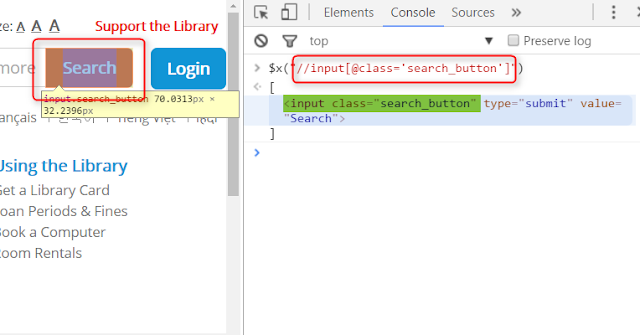
//input[@class='search_button']
Finds the elements with INPUT tag that have a CLASS attribute with the "search_button" value
Find Elements Based On 2 Attributes
EXAMPLE
//input[@id='globalQuery' and @name='q']
Finds the elements with the INPUT tag that
1. have an ID attribute with the "globalQuery" value
2. have a NAME attribute with the "q" value

Find Elements That are Direct Children Of Another Element
EXAMPLE
//div[@class='dropdown']/a
1. finds the elements with the DIV tag that have a CLASS attribute with
the "dropdown" value
2. for each element from the DIV list, finds the A elements that are direct children

Find A Specific Element From a List of Elements
EXAMPLE
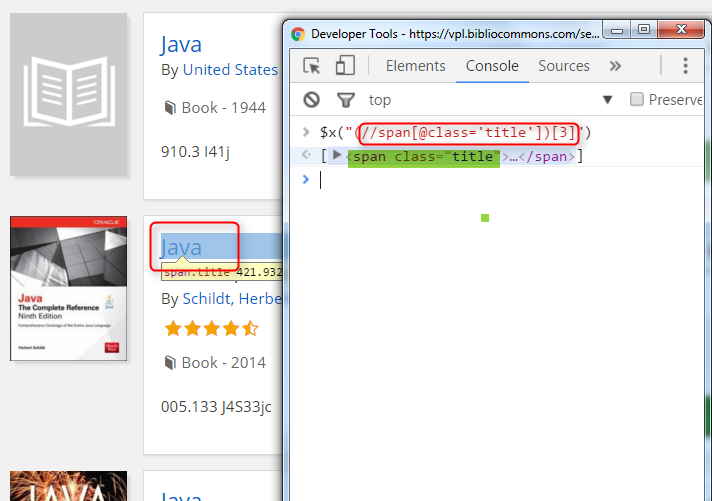
(//span[@class='title'])[3]
1. finds the elements with the SPAN tag that have the CLASS attribute's value equal to
"title"
2. selects the 3rd element from the list of SPAN elements

Find the Last Element From a List of Elements
EXAMPLE
(//span[@class='title'])[last()]
This example uses an XPATH function (last()).
1. finds the elements with the SPAN tag that have the CLASS attribute's value equal to
"title"
2. select the last element from the list of SPAN elements

Finds Elements That Are Included in Other Elements
EXAMPLE
(//div[@class='row top_info list_item_section'])[1]//span
1. finds the elements with the DIV tag that have the CLASS attribute's value equal to "row top_info list_item_section"
2. gets the first element from the DIV elements list
3. finds all SPAN elements (direct children or not) that are inside of the first DIV

Find Elements That Include Keywords in an Attribute
EXAMPLE
//a[contains(@href, 'show_circulation')]
Finds the A elements that have "show_circulation" included in the value of the HREF attribute.
This example uses an XPATH function (contains()).

Find Elements That Have an Attribute Starting With Keyword
EXAMPLE
//a[starts-with(@href, '/item/show_circulation')]
Finds the A elements that have the HREF attribute's value starting with "/item/show_circulation".
This example uses an XPATH function (starts-with()).

Find Elements That Do Not Have A Value For Attribute
EXAMPLE
//input[not(@name='q')]
Finds the INPUT elements that have the NAME attribute's value different than "q".
This example uses an XPATH function (not()).

Get the Count of Elements Matched by an Expression
EXAMPLE
count(//span[@class='title'])
Provides the count of all SPAN elements that have the CLASS attribute's value equal to "title".
This example uses an XPATH function (count()).

Get An Element's Attribute's Value
EXAMPLE
//input[@testid='field_search']/@id
1. Finds the INPUT elements that have the TESTID attribute's value equal to
"field_search"
2. Gets the value of the ID attribute for the INPUT elements

Get an Element's Value
EXAMPLE
(//span[@class='subTitle'])[1]/text()
This example uses an XPATH function (text()).
1. finds the first SPAN element that has the CLASS attribute's value equal to "subTitle"
2. gets the value of the element

Gets Links With URL Greater Than 30 Characters
EXAMPLE
//a[string-length(@href) > 30]
Finds the elements with the A tag that have the HREF attribute value length greater than 30 characters.
This example uses an XPATH function (string-length()).

It uses elements from this page:
https://vpl.bibliocommons.com/search?q=java&t=keyword
The list of XPATH expressions is provided as help for learning how XPATH works.
The list is not complete so if you have any ideas of new expressions, please leave them in the Comments section.
You can test the XPATH expressions in Chrome by
- click the Chrome menu
- select More Tools
- click Developer Tools
- click the CONSOLE tab
- type $x("xpath expression")
- press ENTER
Find Elements Based on Tag
EXAMPLE
//input
Finds the elements with the INPUT tag.

Find Elements Based on Tag and an Attribute
EXAMPLE
//input[@class='search_button']
Finds the elements with INPUT tag that have a CLASS attribute with the "search_button" value

Find Elements Based On 2 Attributes
EXAMPLE
//input[@id='globalQuery' and @name='q']
Finds the elements with the INPUT tag that
1. have an ID attribute with the "globalQuery" value
2. have a NAME attribute with the "q" value

Find Elements That are Direct Children Of Another Element
EXAMPLE
//div[@class='dropdown']/a
1. finds the elements with the DIV tag that have a CLASS attribute with
the "dropdown" value
2. for each element from the DIV list, finds the A elements that are direct children

Find A Specific Element From a List of Elements
EXAMPLE
(//span[@class='title'])[3]
1. finds the elements with the SPAN tag that have the CLASS attribute's value equal to
"title"
2. selects the 3rd element from the list of SPAN elements
Find the Last Element From a List of Elements
EXAMPLE
(//span[@class='title'])[last()]
This example uses an XPATH function (last()).
1. finds the elements with the SPAN tag that have the CLASS attribute's value equal to
"title"
2. select the last element from the list of SPAN elements

Finds Elements That Are Included in Other Elements
EXAMPLE
(//div[@class='row top_info list_item_section'])[1]//span
1. finds the elements with the DIV tag that have the CLASS attribute's value equal to "row top_info list_item_section"
2. gets the first element from the DIV elements list
3. finds all SPAN elements (direct children or not) that are inside of the first DIV

Find Elements That Include Keywords in an Attribute
EXAMPLE
//a[contains(@href, 'show_circulation')]
Finds the A elements that have "show_circulation" included in the value of the HREF attribute.
This example uses an XPATH function (contains()).

Find Elements That Have an Attribute Starting With Keyword
EXAMPLE
//a[starts-with(@href, '/item/show_circulation')]
Finds the A elements that have the HREF attribute's value starting with "/item/show_circulation".
This example uses an XPATH function (starts-with()).

Find Elements That Do Not Have A Value For Attribute
EXAMPLE
//input[not(@name='q')]
Finds the INPUT elements that have the NAME attribute's value different than "q".
This example uses an XPATH function (not()).

Get the Count of Elements Matched by an Expression
EXAMPLE
count(//span[@class='title'])
Provides the count of all SPAN elements that have the CLASS attribute's value equal to "title".
This example uses an XPATH function (count()).

Get An Element's Attribute's Value
EXAMPLE
//input[@testid='field_search']/@id
1. Finds the INPUT elements that have the TESTID attribute's value equal to
"field_search"
2. Gets the value of the ID attribute for the INPUT elements

Get an Element's Value
EXAMPLE
(//span[@class='subTitle'])[1]/text()
This example uses an XPATH function (text()).
1. finds the first SPAN element that has the CLASS attribute's value equal to "subTitle"
2. gets the value of the element

Gets Links With URL Greater Than 30 Characters
EXAMPLE
//a[string-length(@href) > 30]
Finds the elements with the A tag that have the HREF attribute value length greater than 30 characters.
This example uses an XPATH function (string-length()).

NEXT


